Building FetchYT: A FastAPI + yt-dlp MP3 Downloader with Web UI and CLI

wordcloud

Podcast

Sit back and let the article speak for itself!

Audience & Goals

  • Practicing backend/frontend engineers who want to see how a small, real app ties FastAPI, yt-dlp, and a vanilla JS SPA together
  • DevOps-minded builders looking for production-ready touches: retries, cookies for bot detection, realistic headers, and env-driven config
  • Readers comparing approaches to deliver the same capability via three surfaces: REST API, CLI, and browser UI
  • Engineers seeking a template for packaging (pyproject/entry points), testing (pytest-asyncio), and docs that stay aligned with features

TL;DR

  • A FastAPI backend, vanilla JS frontend, and argparse CLI wrap yt-dlp to download single videos and full playlists as MP3/M4A/WAV with quality control, cookies-based bot-bypass, and clean packaging via pyproject.toml. End users get an easy web page and one-liners; developers get a small, readable codebase to extend.
Mind map of the project

Introduction

  • Motivation: Hundreds of favorite tracks live in YouTube playlists; I want them as portable audio on any device—no ads, no buffering, no video stream.
  • User promise: Paste a video or playlist URL, click Download (or run one CLI command), and get clean MP3/M4A/WAV files locally.
  • Developer promise: A compact stack—FastAPI, yt-dlp, vanilla JS, argparse—keeps code understandable and easy to extend.
  • Practical hurdles: YouTube bot detection, format/quality choices, and FFmpeg requirements; the app bakes in cookies support, retries, and clear guidance to make this reliable.

Architecture Overview

  • Backend: FastAPI app (fetchyt/api.py) serves JSON routes and the SPA assets; /api/v1/extract and /api/v1/download run work in background tasks so the server stays responsive while yt-dlp and FFmpeg operate.
  • Downloader core: YouTubeDownloader (fetchyt/downloader.py) wraps yt-dlp with audio-only defaults, format/quality mapping, retries, browser-like headers, and optional cookies (COOKIES_FILE or cookies_from_browser) to survive bot detection.
  • CLI surface: Argparse commands (fetchyt/cli.py)—download, info, server, and cookies—expose the same core so users can script downloads, preview metadata, run the server, or export browser cookies without touching the API.
  • Frontend: Dark-mode SPA under fetchyt/static using vanilla JS (fetchyt/static/js/app.js) to call the API, poll status, and render progress/thumbnails; HTML/CSS keep it lightweight and framework-free.
  • Config & wiring: fetchyt/config.py centralizes environment-driven settings (download dir, max concurrency, API host/port, cookies path) so API, CLI, and downloader stay aligned.

Data Flow

    1. Input: User submits a YouTube video or playlist URL from the SPA, CLI, or Python call.
    1. Extract: /api/v1/extract (or CLI info) calls YouTubeDownloader.extract_info, which uses yt-dlp with headers/cookies to fetch metadata safely.
    1. Confirm: UI/CLI lists titles, durations, and counts so users can pick format/quality and decide if they want the whole playlist.
    1. Enqueue: /api/v1/download (or CLI download) schedules a background task and returns a task_id immediately; the server remains responsive.
    1. Download & transcode: YouTubeDownloader.download drives yt-dlp + FFmpeg to emit MP3/M4A/WAV at the requested bitrate.
    1. Persist: Files are stored in the configured downloads directory with paths tracked per task.
    1. Monitor: SPA polls /api/v1/status/{task_id}; CLI streams progress (percent, ETA, file path) using callbacks.
    1. Cleanup: Optional /api/v1/task/{task_id} removes task metadata (files stay) to keep state lean for the next run.

Key Components

  • YouTubeDownloader.extract_info(url, browser=None): Uses yt-dlp with browser-like headers and optional cookies (file or cookies_from_browser) to pull playlist/video metadata; retries transient failures and offers clear next steps when bot detection appears.
  • YouTubeDownloader.download(...): Maps mp3/m4a/wav to the right yt-dlp/FFmpeg params, enforces quality presets, and emits progress callbacks (percent, ETA, file path) that both CLI and API surface.
  • API endpoints: /api/v1/extract to preview info, /api/v1/download to enqueue background downloads, /api/v1/status/{task_id} for polling, plus cleanup and health; static assets ship from the same FastAPI app to keep deployment simple.
  • CLI commands: download and info wrap the same downloader core; server starts FastAPI; cookies --browser chrome|firefox --output cookies.txt shells out to yt-dlp to export browser cookies, making bot bypass a one-liner.

Handling YouTube Bot Detection

  • Symptom: YouTube replies "Sign in to confirm you’re not a bot" and extraction/download fails.
  • Quick fix for end users: fetchyt cookies --browser chrome --output cookies.txt (or firefox) then set COOKIES_FILE and rerun your command.
  • Under the hood: Downloader sets realistic headers, retries transient blocks, and can attempt cookies_from_browser when enabled.
  • If still blocked: Wait 10–30 minutes, switch network/VPN, or export cookies from another browser profile.
  • UX help: CLI/API error messages include actionable steps so users know what to try next.

Installation & Setup

  • Prereqs: Install Python 3.12+ (add it to PATH) and FFmpeg (needed to produce audio). Quick installs: Windows choco install ffmpeg; macOS brew install ffmpeg; Ubuntu/Debian sudo apt install ffmpeg.
  • Fast path for local use (recommended):
    1. Install uv if missing: Windows PowerShell irm https://astral.sh/uv/install.ps1 | iex; macOS/Linux curl -LsSf https://astral.sh/uv/install.sh | sh
    2. Create and activate a virtualenv: uv venv then .venv\Scripts\activate (Windows) or source .venv/bin/activate (macOS/Linux)
    3. Install in editable mode: uv pip install -e .
  • From PyPI (no repo clone): uv pip install fetchyt or pip install fetchyt
  • Smoke test: fetchyt --version then fetchyt info "https://www.youtube.com/watch?v=dQw4w9WgXcQ"
  • If blocked by YouTube: fetchyt cookies --browser chrome --output cookies.txt, set COOKIES_FILE to that path, and retry.

Getting Started in 60 Seconds

  • Step 1: Install Python 3.12+ and FFmpeg (see above quick commands).
  • Step 2: Install FetchYT: uv pip install fetchyt (or pip install fetchyt).
  • Step 3: Try a download: fetchyt download "https://www.youtube.com/watch?v=VIDEO" --yes and find the audio in ./downloads.
  • Step 4 (if blocked): fetchyt cookies --browser chrome --output cookies.txt then set COOKIES_FILE=./cookies.txt and rerun.
  • Step 5: Open the web UI: fetchyt server then visit http://localhost:8098.
Screenshot – Home page of web UI showing URL input and download options

Implementing the Downloader

  • yt-dlp options: audio-only extraction, format mapping (mp3/m4a/wav), and bitrate presets (128/192/256/320 kbps) so users can trade size for quality; works for single videos and playlists.
  • Cookies integration: respects COOKIES_FILE and can call yt-dlp’s cookies_from_browser to export cookies automatically when users ask.
  • Progress handling: callbacks surface percent, ETA, and destination path so the CLI and API can show live status.
  • Error handling: retries transient errors, shows clear messages, and suggests cookies/network/VPN remedies when bot detection appears.

Web Server & Frontend

  • Single process: FastAPI serves the SPA and JSON routes together—simple to run locally or deploy as one service.
  • SPA calls: index.html plus vanilla JS (fetchyt/static/js/app.js) hit /api/v1/extract to preview, /api/v1/download to start, and poll /api/v1/status/{task_id} for progress and thumbnails.
  • UX: dark theme, responsive layout, progress bars, inline error callouts, and success toasts—no frontend framework to learn or bundle.
  • Try it: fetchyt server --host 0.0.0.0 --port 8098 then open http://localhost:8098; everything (static + API) comes from that server.
Screenshot – Web UI showing playlist info

CLI Usage

  • Preview first: fetchyt info <URL> (single video or playlist) to see titles/counts before downloading.
  • Download: fetchyt download <URL> --format mp3 --quality 192 --output ./downloads --yes to grab audio with chosen format/bitrate; omit --yes to confirm playlists interactively.
  • Bypass bot checks: fetchyt cookies --browser chrome --output cookies.txt then set COOKIES_FILE so future commands automatically send cookies.
  • Serve the UI/API: fetchyt server --host 0.0.0.0 --port 8098 if you want the web app running locally.

Testing & Code Quality

  • Tests: Pytest plus pytest-asyncio cover async downloader/API paths; add coverage reports to see what’s exercised.
  • Types & validation: Type hints throughout; Pydantic models validate inputs so bad URLs/options are caught early instead of failing mid-download.
  • Lint/format: Ruff and Black keep the code consistent and reviewable.
  • Quick check: run pytest after changes; keep async tests deterministic and small.

Performance & Concurrency

  • Async/await keeps the API responsive while downloads run in the background.
  • Background tasks handle yt-dlp + FFmpeg so requests return immediately with a task_id.
  • Concurrency knobs: set max concurrent downloads via config to balance speed against CPU/network strain.
  • Playlists at scale: big lists mean longer poll times; consider chunking or folder-per-playlist if you extend it.

Security Considerations

  • Validate input: Pydantic guards URLs and options to reduce malformed requests.
  • CORS: lock down allowed origins in production if exposing the API publicly.
  • File safety: restrict downloads to the configured directory; avoid writing outside intended paths.
  • Errors: keep messages informative but not verbose enough to leak internals.

Roadmap & Future Enhancements

  • Reliability: resume interrupted downloads, add queue management, and surface live progress via WebSockets.
  • UX/features: add authentication, download history, batch/CSV inputs, and richer filtering.
  • Distribution: publish a Docker image, consider a desktop wrapper, and polish mobile-friendly flows.

Troubleshooting

  • FFmpeg not found: install via Chocolatey/Homebrew/Apt and retry.
  • Bot detection: export cookies (fetchyt cookies ...), set COOKIES_FILE, then rerun; if blocked, wait or switch network/VPN.
  • Port in use: start the server with --port 8080 (or another free port).

Conclusion

  • For end users: FetchYT turns any YouTube video or playlist into portable audio with a simple web page or one CLI line, even when YouTube pushes bot checks.
  • For developers: It’s a compact, well-typed FastAPI + yt-dlp stack with clear separation (API, CLI, downloader, SPA) and pragmatic touches—cookies, retries, headers—that you can extend or embed elsewhere.

References

Last updated 2026-01-11 18:58:22.307709 IST

[^top]

GPT-5 Router Architecture and Advanced Prompting Strategies

wordcloud

With the introduction of GPT-5, a significant architectural change has transformed how users interact with AI, moving away from a multi-version system (like GPT-4) and into a unified architecture with an internal router system. This shift presents new opportunities for task routing and output optimization, but it also necessitates a new set of specialized prompting techniques. In this article, based on my research paper, “The Prompting Inversion: Architecting Next-Generation Interaction Strategies for GPT-5,” November 1, 2025. https://doi.org/10.5281/zenodo.17522503, we’ll explore the practical implications of GPT-5’s internal routing system, how it affects prompting strategies, and how to control the output for both structure and reasoning.

1. GPT-5 Router Architecture: Smart Task Delegation and Control

Unlike GPT-4, which required users to choose from different versions (e.g., a standard model for general tasks, a faster model for quick responses, or a multimodal version for handling various input types), GPT-5 uses a dynamic router that automatically selects the most suitable model for a given task. This system is designed to optimize the model’s processing efficiency, but it requires users to apply specific techniques to get the best results.

1.1 Dynamic Routing System Requires Explicit Control

With GPT-5, the router chooses between different internal models based on the complexity of the input query. For simple queries, the system may select a lightweight, faster model like ChatGPT-5-Thinking-Mini, which produces faster responses but may sacrifice depth. For complex, nuanced tasks, GPT-5 uses a more sophisticated model like ChatGPT-5-Main, which engages in deeper reasoning.

Example:

  • Simple Query (e.g., asking for a weather report): Prompt: "What's the weather like today in London?" The router will likely choose the Thinking-Mini model to produce a quick answer.

  • Complex Query (e.g., asking for a historical analysis): Prompt: "Can you analyze the factors that led to the fall of the Roman Empire?" The router will likely select ChatGPT-5-Main, which takes time to provide a comprehensive, thoughtful response.

However, a potential drawback of this automatic model selection is that vague prompts can lead to unsatisfactory results. GPT-5, particularly in its faster mode, may not produce responses that are as nuanced or accurate as needed.

Solution: Use "Nudge Phrases" to Ensure Deeper Thinking To nudge GPT-5 into using the more sophisticated models, users can append explicit router nudge phrases to their prompts. These phrases encourage GPT-5 to engage its more advanced reasoning capabilities.

Example:

  • Vague Query: "Explain the causes of the Industrial Revolution." The router may select the Thinking-Mini model, which may produce an overly simplistic answer.

  • Nudged Query: "Think deeply about the causes of the Industrial Revolution and explain in detail." The router now selects ChatGPT-5-Main, triggering deeper analysis and a more comprehensive response.

In this case, the nudge phrase ("Think deeply") directs the router to switch from a fast model to a more sophisticated one, ensuring a higher-quality output.

1.2 Preventing Context Drift in Auto Mode

While the router system aims to make GPT-5 more efficient, it introduces the challenge of context drift. This occurs when the internal model switches between different processing modes (e.g., fast to deep thinking), potentially losing important context from earlier in the conversation.

Example of Context Drift:

User: "Describe the impact of climate change on polar bears." Assistant: "Climate change has a profound effect on the natural habitat of polar bears, particularly as it affects their ice platforms. Due to melting ice, polar bears are forced to travel longer distances in search of food..." User: "Can you go into more detail on how this affects polar bear reproduction?" Assistant: "Sure. The primary concern is that the melting ice platforms are affecting their migration patterns and food sources. This, in turn, leads to lower reproduction rates..."

In this scenario, the model may lose track of the tone or context of the original query, especially if it switches between faster and more sophisticated models.

Solution: Use Structured Inputs (XML Sandwich Technique) To prevent context drift and ensure continuity, use a structured approach like the XML Sandwich technique. This technique segments the prompt into well-defined sections, ensuring the model understands the context, instructions, and expected output.

Example of XML Sandwich:

<Context>
  Climate change has significant impacts on ecosystems, especially on the Arctic region.
</Context>
<Instructions>
  Provide an in-depth explanation of how climate change impacts polar bear reproduction, focusing on migration and food availability.
</Instructions>
<Task>
  Explain in detail how the loss of ice platforms influences the reproductive cycles of polar bears.
</Task>
<OutputFormat>
  Provide a detailed, structured explanation with subsections on migration patterns and reproduction rates.
</OutputFormat>

This format guides GPT-5 to focus on the right context and provide the depth of response that the user expects, avoiding context drift and maintaining focus on the topic.


2. Controlling GPT-5 Output with Structure, Reasoning, and Verbosity

As GPT-5 is highly adaptable, controlling its output requires precise instructions on structure, depth of reasoning, and verbosity. These elements allow users to tailor responses for different audiences and purposes, whether they need a quick summary, an in-depth analysis, or a concise technical explanation.

2.1 XML Format (Structured Prompting)

The XML format remains one of the most effective ways to control GPT-5’s output. By structuring the prompt into distinct sections, users can ensure that GPT-5 processes the query clearly and follows a logical flow.

Example of an XML-formatted Prompt:

<Context>
  The Industrial Revolution was a period of significant social, economic, and technological change that began in the 18th century.
</Context>
<Instructions>
  Analyze the role of steam engines in the Industrial Revolution, particularly their impact on transportation and manufacturing.
</Instructions>
<Task>
  Provide a detailed explanation, emphasizing the technological advances and their implications for society.
</Task>
<OutputFormat>
  Write a detailed essay with the following sections: Introduction, Steam Engine Innovations, Impact on Manufacturing, and Conclusion.
</OutputFormat>

In this example, the structured format ensures that GPT-5 understands exactly how to handle the request, breaking it down into a structured, detailed response.

2.2 Reasoning Effort (Cognitive Control)

To control the depth of reasoning, GPT-5 provides two methods: router nudge phrases and the reasoning_effort parameter for API users.

  • Router Nudge Phrases: As mentioned earlier, nudge phrases can ensure GPT-5 uses its most advanced reasoning models. For instance, if you need a detailed explanation of a complex topic, using phrases like "Think deeply" will signal GPT-5 to apply a more advanced cognitive process.

Example:

  • Query: "What are the social impacts of artificial intelligence?"
  • Nudged Query: "Think deeply about the social impacts of artificial intelligence, particularly focusing on issues like employment and privacy."

This simple addition directs the model to perform more in-depth reasoning, utilizing its Chain-of-Thought (CoT) mechanism for comprehensive analysis.

  • Reasoning Effort API Parameter: For API users, adjusting the reasoning_effort parameter offers explicit control over how much time and processing capacity the model devotes to a task.

Example:

  • For a simple task like “What is the capital of France?” the reasoning_effort could be set to low for a quick answer.
  • For a complex task like “Explain the long-term economic effects of global warming on coastal cities,” setting the reasoning_effort to high would ensure GPT-5 performs deeper analysis, spending more time planning and verifying its response.

2.3 Verbosity (Output Length Control)

Verbosity is an important factor in controlling the length and detail of GPT-5’s responses. Depending on the audience and purpose of the output, users may want short summaries, medium-length reports, or long-form essays.

Example of Verbosity Control in a Prompt:

  • Short Response: "Summarize the plot of Hamlet in 2 sentences."
  • Medium Response: "Summarize the plot of Hamlet in 100 words."
  • Long Response: "Provide a detailed 500-word summary of Hamlet, focusing on the main themes and character arcs."

In addition to specifying output length directly in the prompt, the verbosity parameter in the API allows users to adjust output length at a more granular level:

  • Low Verbosity: Concise, to-the-point answers with no unnecessary details.
  • Medium Verbosity: Balanced output, providing enough detail without overwhelming the user.
  • High Verbosity: Detailed, comprehensive answers that explore every aspect of the topic.

3. Other Advanced Techniques for Controlling Output

Beyond the core control mechanisms, GPT-5 offers advanced techniques that can further refine the output:

Tool Preambles:

For complex reasoning tasks, you can instruct GPT-5 to provide intermittent updates. This tool preamble guides the model to narrate its thought process, providing visibility into how it’s solving a problem and helping you monitor progress.

Example:

<Instructions>
  When answering, please provide intermediate steps and updates as you reason through the problem.
</Instructions>

The Perfection Loop:

For high-stakes tasks, such as writing a final report, you can instruct GPT-5 to refine its output through a perfection loop. This technique leverages GPT-5's ability to critique its own work. You can direct it to review and improve its response until it meets a specified standard of quality, which is particularly useful for tasks where precision and clarity are paramount.

Example:

<Instructions>
  Write a detailed analysis of the role of AI in modern healthcare. After completing the initial draft, please critique the response for clarity, depth, and accuracy. Revise the draft based on this self-evaluation until you reach a polished version.
</Instructions>

In this case, GPT-5 will generate an initial response, self-assess it, and refine the output based on its own analysis, ensuring a higher quality final product.

Meta Prompting:

Meta prompting involves using GPT-5 itself to help you improve the original prompt. This method turns GPT-5 into a "Prompt Engineering Consultant," helping to eliminate ambiguities, identify missing information, and improve the overall structure of the request. This is a highly effective technique when you need to create the best possible prompt for a complex task.

Example:

<Context>
  I need a detailed report on the impact of climate change on biodiversity.
</Context>
<Instructions>
  Act as a prompt engineer and suggest ways to structure the report better, eliminating any vagueness and ensuring all relevant aspects are covered.
</Instructions>
<Task>
  Provide a structured report that includes data, analysis, and possible solutions for mitigating climate change effects on biodiversity.
</Task>

GPT-5 will evaluate your prompt and suggest improvements, helping you create a more focused and effective query.


Conclusion: Mastering GPT-5's Advanced Prompting Techniques

GPT-5 offers unparalleled flexibility, but with this power comes the need for more careful control over how prompts are constructed. The introduction of the router architecture allows GPT-5 to dynamically adjust its processing effort depending on the complexity of the task, but this also means users need to be strategic with their prompts to achieve the desired level of depth and quality.

Key strategies include:

  • Dynamic Routing: Understanding how to use "nudge phrases" and avoid vague prompts is crucial for ensuring GPT-5 selects the right model for the task.
  • Structured Input (XML Sandwich): Organizing your prompts with clear boundaries between context, instructions, and tasks helps prevent confusion and ensures a focused response.
  • Controlling Reasoning Effort: Using phrases that prompt deep thinking and adjusting the reasoning_effort parameter can tailor the model's cognitive capacity to match task complexity.
  • Verbosity Control: Managing the length and detail of responses is essential for different audiences, and you can fine-tune this through explicit instructions or API parameters.

By mastering these techniques and employing advanced prompting strategies like the perfection loop or meta prompting, users can unlock GPT-5's full potential, guiding it to deliver precise, contextually rich, and structured output tailored to specific needs.

As GPT-5 continues to evolve, these strategies will play a pivotal role in enhancing its usefulness across a variety of domains, from casual conversations to highly technical tasks. The model's ability to adjust based on the user’s requirements and preferences makes it a powerful tool for those who know how to communicate with it effectively. Whether you're seeking deep insights, clear summaries, or detailed technical analyses, GPT-5’s flexibility, combined with the right prompting strategies, can achieve just about anything.


Citation

Allika, Krishnakanth. “The Prompting Inversion: Architecting Next-Generation Interaction Strategies for GPT-5”, November 1, 2025. https://doi.org/10.5281/zenodo.17522503.

Last updated 2025-11-04 17:58:49.219451 IST

[^top]

Building Your Own Free URL Shortener for your Custom Domain

wordcloud

In today's digital landscape, URL shorteners have become essential tools for sharing links efficiently. However, most free URL shortening services come with significant limitations:

  1. Custom Domain Restrictions: Many services charge premium fees for using your own domain
  2. Privacy Concerns: Closed-source solutions may track user data in ways you can't control
  3. Limited Control: You can't modify the code or customize the behavior
  4. Usage Limits: Free tiers often restrict the number of URLs, domains, or monthly hits

This article will show you how to build your own URL shortener using GitLab Pages - completely free, with full control over your code and data, and no usage limits.

Why GitLab Pages?

GitLab Pages offers several advantages for hosting a URL shortener:

  • Free hosting for static sites
  • Custom domain support at no extra cost
  • Automatic HTTPS with Let's Encrypt
  • CI/CD integration for automated deployment
  • Unlimited URLs and redirects
  • No traffic limits

How It Works

Our URL shortener uses a simple but effective approach:

  1. Store redirect mappings in a YAML configuration file
  2. Generate static HTML pages with meta refresh redirects
  3. Deploy these pages to GitLab Pages
  4. Access your short URLs through your custom domain

The entire solution requires just a few files and minimal Python code.

Step 1: Set Up Your GitLab Repository

First, create a new GitLab repository for your URL shortener:

  1. Log in to GitLab and click "New project"
  2. Choose "Create blank project"
  3. Name it something like "url-shortener"
  4. Make it public or private (both work with GitLab Pages)

Step 2: Create the Core Files

You'll need these essential files:

1. main.py - The Generator Script

This script reads your redirect mappings and generates the HTML files:

import logging
import os
import shutil
import yaml
from typing import Dict, Any

logging.basicConfig(
    level=logging.INFO,
    format="%(asctime)s [%(levelname)s] %(name)s:%(lineno)d - %(message)s",
)
logger = logging.getLogger(__name__)


def load_redirects(config_file: str = "redirects.yaml") -> Dict[str, str]:
    """Load redirects from YAML configuration file."""
    logger.info("Loading redirects from %s", config_file)
    try:
        with open(config_file, "r", encoding="utf-8") as fh:
            redirects = yaml.safe_load(fh) or {}
        logger.info("Loaded %d redirect entries", len(redirects))
        return redirects
    except FileNotFoundError:
        logger.warning("%s not found; nothing to generate", config_file)
        return {}
    except yaml.YAMLError as exc:
        logger.exception("Failed to parse %s: %s", config_file, exc)
        return {}


def create_redirect_html(url: str) -> str:
    """Generate HTML content for a redirect page."""
    return f'<meta http-equiv="refresh" content="0; url={url}">'


def setup_output_directory(output_dir: str = "public") -> None:
    """Setup and clean the output directory."""
    logger.info("Rebuilding %s directory", output_dir)
    shutil.rmtree(output_dir, ignore_errors=True)
    os.makedirs(output_dir, exist_ok=True)


def generate_redirect_files(
    redirects: Dict[str, str], output_dir: str = "public"
) -> None:
    """Generate redirect HTML files for all redirect mappings."""
    for path, url in redirects.items():
        target_dir = os.path.join(output_dir, path)
        os.makedirs(target_dir, exist_ok=True)
        target_file = os.path.join(target_dir, "index.html")
        logger.info("Creating redirect for '%s' -> %s", path, url)
        with open(target_file, "w", encoding="utf-8") as f:
            f.write(create_redirect_html(url))


def main() -> None:
    """Main function to generate redirect pages."""
    redirects = load_redirects()
    setup_output_directory()
    generate_redirect_files(redirects)
    logger.info("Redirect generation complete")


if __name__ == "__main__":
    main()

Code Explanation for Beginners:

  1. Imports and Setup (Lines 1-11):

    • We import necessary Python modules: logging for tracking what's happening, os and shutil for file operations, and yaml for reading configuration files.
    • typing.Dict is used for type hints, making the code more readable and maintainable.
    • We set up logging to show timestamps and line numbers, which helps with debugging.
  2. Loading Redirects (Lines 14-28):

    • The load_redirects function reads our YAML configuration file.
    • It uses a try/except block to handle potential errors gracefully:
      • If the file doesn't exist, it logs a warning and returns an empty dictionary.
      • If the YAML is invalid, it logs the error and returns an empty dictionary.
    • The or {} part ensures we always have a dictionary, even if the YAML file is empty.
  3. Creating HTML (Lines 31-33):

    • The create_redirect_html function generates a simple HTML meta tag.
    • This tag tells browsers to automatically redirect to the specified URL.
    • We use an f-string (the f'...' syntax) to insert the URL into the HTML.
  4. Setting Up Output Directory (Lines 36-40):

    • The setup_output_directory function prepares where we'll save our files.
    • It removes any existing directory (with shutil.rmtree) and creates a fresh one.
    • The exist_ok=True parameter prevents errors if the directory already exists.
  5. Generating Redirect Files (Lines 43-55):

    • For each path-URL pair in our redirects dictionary:
      • We create a directory for the path (creating nested directories if needed).
      • We create an index.html file in that directory.
      • We write the redirect HTML to the file.
  6. Main Function (Lines 58-63):

    • This ties everything together in a logical sequence:
      1. Load the redirects from the YAML file
      2. Set up the output directory
      3. Generate all the redirect files
  7. Script Entry Point (Lines 66-67):

    • The if __name__ == "__main__": check ensures the code only runs when executed directly.
    • This is a Python convention that prevents code from running when imported as a module.

2. redirects.yaml - Your URL Mappings

This file contains all your short URL mappings:

# Use the pattern short-url-slug: redirect-link for every entry.
blog: https://yourblog.com
gitlab: https://gitlab.com/yourusername
twitter: https://twitter.com/yourusername
latest-project: https://gitlab.com/yourusername/awesome-project

YAML Explanation for Beginners:

YAML is a human-readable data format that's simpler than JSON or XML. In this file:

  1. Comments start with # and are ignored when the file is processed.
  2. Key-value pairs are written as key: value - in our case, the key is the short URL path, and the value is the target URL.
  3. No quotes needed for most strings, but you can use them for values with special characters.
  4. Indentation matters in YAML (though our simple example doesn't use nested structures).

Each line defines one redirect. When someone visits yourdomain.com/blog, they'll be redirected to https://yourblog.com.

3. pages/404.html - Custom 404 Page

Create a user-friendly 404 page that redirects back after a few seconds:

<!DOCTYPE html>
<html lang="en">
<head>
    <meta charset="UTF-8">
    <meta name="viewport" content="width=device-width, initial-scale=1.0">
    <title>404 - Page Not Found</title>
    <style>
        body {
            font-family: Arial, sans-serif;
            text-align: center;
            margin-top: 100px;
            line-height: 1.6;
        }
        h1 {
            color: #333;
        }
        p {
            color: #666;
        }
    </style>
    <script>
        window.addEventListener('DOMContentLoaded', () => {
            setTimeout(() => {
                if (window.history.length > 1) {
                    window.history.back();
                } else {
                    window.location.href = '/';
                }
            }, 5000);
        });
    </script>
</head>
<body>
    <h1>Page Not Found</h1>
    <p>Redirecting back in 5 seconds...</p>
    <p><a href="javascript:history.back()">Click here</a> if you are not redirected automatically.</p>
</body>
</html>

HTML Explanation for Beginners:

This is a custom 404 (page not found) error page with automatic redirection:

  1. Document Structure:

    • <!DOCTYPE html> declares this as an HTML5 document.
    • <html>, <head>, and <body> are the standard HTML structure elements.
  2. Meta Information:

    • <meta charset="UTF-8"> specifies character encoding.
    • <meta name="viewport"...> helps with mobile responsiveness.
    • <title> sets the browser tab title.
  3. CSS Styling:

    • The <style> section contains CSS that centers the content and styles the text.
    • Simple styling keeps the page clean and readable.
  4. JavaScript Functionality:

    • The <script> section contains code that automatically redirects after 5 seconds.
    • It checks if there's a previous page in history:
      • If yes, it goes back to that page.
      • If not, it redirects to the homepage.
    • The DOMContentLoaded event ensures the script runs after the page loads.
  5. Page Content:

    • A heading explains that the page wasn't found.
    • Text informs the user about the automatic redirection.
    • A clickable link allows immediate redirection for impatient users.

4. .gitlab-ci.yml - CI/CD Configuration

This file automates the build and deployment process:

workflow:
  rules:
    - if: '$CI_COMMIT_BRANCH == "release"'
    - when: never

stages:
  - build
  - deploy

build:
  image: python:3.13
  stage: build
  script:
    - python -V
    - pip install -r requirements.txt
    - mkdir public
    - uv run main.py
    - mv pages/* public/
    - ls -la public
  artifacts:
    paths:
      - public
    expire_in: 1 week

pages:
  stage: deploy
  dependencies:
    - build
  script:
    - echo "Publishing GitLab Pages from public/"
  artifacts:
    paths:
      - public

GitLab CI/CD Explanation for Beginners:

This YAML file configures GitLab's Continuous Integration/Continuous Deployment (CI/CD) pipeline:

  1. Workflow Rules:

    • The workflow section defines when the pipeline should run.
    • It only runs when changes are pushed to the "release" branch.
    • The when: never rule prevents the pipeline from running in other cases.
  2. Stages:

    • The pipeline has two sequential stages: build and deploy.
    • Each stage must complete successfully before the next one starts.
  3. Build Job:

    • Uses Python 3.13 as the base Docker image.
    • Runs several commands in sequence:
      • Shows the Python version (python -V)
      • Installs dependencies from requirements.txt
      • Creates a public directory
      • Runs our main.py script using the uv package runner
      • Moves files from pages/ to public/
      • Lists the contents of public/ for verification
    • Saves the public/ directory as an "artifact" (preserved output)
    • Artifacts expire after one week to save storage space
  4. Pages Job:

    • Depends on the build job (won't run if build fails)
    • Simply publishes the contents of public/ to GitLab Pages
    • Preserves the public/ directory as a permanent artifact

GitLab automatically recognizes the "pages" job name and deploys its artifacts to your GitLab Pages site.

5. requirements.txt - Dependencies

A simple file listing the required Python packages:

pyyaml>=6.0.3

Requirements.txt Explanation for Beginners:

This simple file tells Python's package manager what external libraries our project needs:

  1. Package Specification:

    • pyyaml is the package name (for YAML file processing)
    • >=6.0.3 means we need version 6.0.3 or newer
  2. Usage:

    • When someone runs pip install -r requirements.txt, all listed packages will be installed
    • The -r flag tells pip to read requirements from the file
  3. Benefits:

    • Ensures everyone working on the project uses compatible package versions
    • Makes it easy to set up the project on a new computer
    • Simplifies deployment in CI/CD environments

For our URL shortener, we only need the PyYAML package to read our configuration file.

Step 3: Configure GitLab Pages and Custom Domain

After pushing your code to GitLab, the CI/CD pipeline will automatically build and deploy your URL shortener. Let's configure GitLab Pages for public access and set up your custom domain.

Configuring Project Visibility

First, ensure your GitLab Pages site is accessible to everyone:

  1. Go to your project's Settings > General
  2. Scroll down to the Visibility, project features, permissions section
  3. Expand this section and find Pages under Project Features
  4. Make sure Pages access control is set to Everyone or Public
  5. Click Save changes

This ensures your URL shortener is accessible to all users, even if your repository is private.

Setting Up Your Custom Domain

To use your own domain with your URL shortener:

  1. Go to your project's Settings > Pages
  2. You should see your site is already live at https://yourusername.gitlab.io/your-project-name
  3. Click New Domain to add your custom domain
  4. Enter your domain (e.g., short.yourdomain.com or just yourdomain.com)
  5. Optionally check Automatic certificate management using Let's Encrypt for free HTTPS
  6. Click Create New Domain

DNS Configuration

After adding your domain, you need to configure DNS records at your domain registrar:

For a Subdomain (e.g., short.yourdomain.com):

  1. Add a CNAME record:
    • Name/Host: short (or whatever subdomain you chose)
    • Value/Target: yourusername.gitlab.io (your GitLab Pages domain)
    • TTL: 3600 (or as recommended by your registrar)

For an Apex/Root Domain (e.g., yourdomain.com):

Since apex domains can't use CNAME records, you have two options:

Option 1: Using A records (pointing directly to GitLab's IP addresses):

  1. Add A records pointing to GitLab's Pages servers:

    Name: @ (or leave blank)
    Value: 35.185.44.232
    TTL: 3600
    

    Add another A record with the same name and TTL but with this IP:

    Value: 35.186.234.248
    

Option 2: Using DNS provider's CNAME-like feature: Many DNS providers offer services like ALIAS, ANAME, or CNAME flattening:

  1. Create an ALIAS/ANAME record:
    • Name: @ (or leave blank)
    • Value: yourusername.gitlab.io

Verifying Domain Ownership

GitLab requires you to verify ownership of your domain:

  1. In the GitLab Pages domain settings, you'll see a Verification status section

  2. GitLab will provide you with a verification code (e.g., gitlab-pages-verification-code=00112233445566778899aabbccddeeff)

  3. Add a TXT record to your DNS settings:

    For a subdomain (e.g., short.yourdomain.com):

    • Name/Host: _gitlab-pages-verification-code.short
    • Value/Content: gitlab-pages-verification-code=00112233445566778899aabbccddeeff

    For an apex domain (e.g., yourdomain.com):

    • Name/Host: _gitlab-pages-verification-code
    • Value/Content: gitlab-pages-verification-code=00112233445566778899aabbccddeeff
  4. Wait for DNS propagation (can take up to 24-48 hours)

  5. Go back to your GitLab project's Pages settings and click Verify domain

Once verified, your custom domain will be active, and GitLab will automatically issue an SSL certificate if you selected that option. You can now access your URL shortener through your custom domain!

Step 4: Using Your URL Shortener

Once deployed, your URL shortener works like this:

  1. To create a new short URL, add an entry to redirects.yaml:

    awesome: https://example.com/my/very/long/url/that/needs/shortening
    
  2. Commit and push the change to GitLab

  3. The CI/CD pipeline automatically rebuilds and deploys your site

  4. Your new short URL is now available at https://short.yourdomain.com/awesome

Advanced Customization Options

Custom Landing Page

Create an index.html file in the pages directory to serve as your landing page:

<!DOCTYPE html>
<html lang="en">
<head>
    <meta charset="UTF-8">
    <meta name="viewport" content="width=device-width, initial-scale=1.0">
    <title>My URL Shortener</title>
    <style>
        body {
            font-family: Arial, sans-serif;
            max-width: 800px;
            margin: 0 auto;
            padding: 20px;
            line-height: 1.6;
        }
        h1 {
            color: #333;
        }
    </style>
</head>
<body>
    <h1>My Personal URL Shortener</h1>
    <p>This is a custom URL shortening service.</p>
    <p>Available short links:</p>
    <ul>
        <li><a href="/blog">/blog</a> - My blog</li>
        <li><a href="/gitlab">/gitlab</a> - My gitlab profile</li>
        <!-- Add more links as needed -->
    </ul>
</body>
</html>

Landing Page HTML Explanation for Beginners:

This HTML file creates a simple homepage for your URL shortener:

  1. Document Structure:

    • Standard HTML5 structure with <!DOCTYPE>, <html>, <head>, and <body> tags
    • lang="en" attribute specifies English as the document language
  2. Meta Information:

    • Character encoding and viewport settings for proper display on all devices
    • Page title that appears in the browser tab
  3. CSS Styling:

    • Embedded CSS in the <style> tag keeps everything in one file
    • Sets a clean, readable font (Arial or similar sans-serif)
    • Limits content width to 800px and centers it on the page
    • Adds spacing and line height for better readability
    • Colors the heading for visual hierarchy
  4. Content Structure:

    • Main heading identifies the site
    • Brief description explains the purpose
    • List of available short links with their destinations
    • Comment showing where to add more links
  5. Navigation:

    • Each link in the list points to one of your short URLs
    • When clicked, these trigger the redirects you've configured
    • The description after each link helps users understand where they'll go

This landing page serves as both documentation and a navigation hub for your URL shortener.

Analytics Integration

Since you control the code, you can add analytics tracking to your redirects:

def create_redirect_html(url: str) -> str:
    """Generate HTML content for a redirect page with analytics."""
    return f'''
    <!DOCTYPE html>
    <html>
    <head>
        <meta http-equiv="refresh" content="1; url={url}">
        <!-- Google Analytics or other tracking code -->
        <script async src="https://www.googletagmanager.com/gtag/js?id=YOUR-ID"></script>
        <script>
            window.dataLayer = window.dataLayer || [];
            function gtag(){{dataLayer.push(arguments);}}
            gtag('js', new Date());
            gtag('config', 'YOUR-ID');
            gtag('event', 'redirect', {{
                'event_category': 'outbound',
                'event_label': '{url}',
                'transport_type': 'beacon'
            }});
        </script>
    </head>
    <body>
        <p>Redirecting to <a href="{url}">{url}</a>...</p>
    </body>
    </html>
    '''

Analytics Integration Explanation for Beginners:

This enhanced version of our redirect function adds Google Analytics tracking:

  1. Function Structure:

    • Same function name but with more complex HTML output
    • Uses Python's triple-quote string (''') for multi-line text
    • The f prefix creates an f-string, allowing variable insertion with {url}
  2. HTML Changes:

    • Adds a full HTML document structure instead of just a meta tag
    • Increases the redirect delay to 1 second to allow tracking to execute
    • Includes a visible message with a clickable link
  3. Google Analytics Integration:

    • Loads the Google Analytics JavaScript library
    • Sets up the basic tracking configuration
    • Creates a custom event for the redirect:
      • Category: "outbound"
      • Label: The destination URL
      • Transport: "beacon" (ensures the tracking data is sent even during page unload)
  4. Double Curly Braces:

    • Notice the {{ and }} in the JavaScript - these are escaped curly braces
    • In Python f-strings, you need to double the braces to output actual braces in the result
  5. Implementation Steps:

    • Replace YOUR-ID with your actual Google Analytics ID
    • Use this function instead of the simpler version in main.py
    • Now you'll be able to track which redirects are used most frequently

Delayed Redirects

You can add a delay to show a message before redirecting:

def create_redirect_html(url: str, delay_seconds: int = 3) -> str:
    """Generate HTML content for a redirect page with delay."""
    return f'''
    <!DOCTYPE html>
    <html>
    <head>
        <meta http-equiv="refresh" content="{delay_seconds}; url={url}">
        <style>
            body {{ font-family: Arial, sans-serif; text-align: center; margin-top: 100px; }}
        </style>
    </head>
    <body>
        <h1>Redirecting in {delay_seconds} seconds...</h1>
        <p>You are being redirected to: <a href="{url}">{url}</a></p>
    </body>
    </html>
    '''

Delayed Redirect Explanation for Beginners:

This function creates a redirect page with a customizable delay:

  1. Function Parameters:

    • Takes the destination URL as before
    • Adds a new delay_seconds parameter with a default value of 3
    • The default value means this parameter is optional
  2. Meta Refresh Modification:

    • Changes the content attribute to include the delay: "{delay_seconds}; url={url}"
    • The browser will wait that many seconds before redirecting
  3. Improved User Experience:

    • Adds basic styling with CSS to make the page look better
    • Notice the double curly braces in the CSS ({{ }}) to escape them in the f-string
    • Includes a heading that shows the countdown time
    • Provides a clickable link so users can proceed immediately if they don't want to wait
  4. Use Cases:

    • Showing important messages before redirecting
    • Giving users time to read information
    • Displaying advertisements or notices
    • Allowing tracking scripts to fully execute
  5. Implementation:

    • You can call this with just a URL: create_redirect_html("https://example.com")
    • Or specify a custom delay: create_redirect_html("https://example.com", 5)

This approach makes your redirects more user-friendly while still maintaining their primary function.

Benefits Over Commercial Solutions

This DIY approach offers several advantages:

  1. Complete Privacy: No third-party tracking your users
  2. Unlimited Usage: No caps on URLs or traffic
  3. Full Control: Modify the code to suit your needs
  4. Custom Domain for Free: Use any domain you own
  5. Transparent Operation: Open-source code you can inspect
  6. No Vendor Lock-in: Export your redirects anytime
  7. Zero Cost: Free hosting on GitLab Pages

Reference Implementation

For a complete, production-ready implementation of this concept, check out the Redirector repository by Krishnakanth Allika. This repository includes several enhancements beyond the basic implementation described in this article:

Advanced Features

  1. Comprehensive Logging

    • Detailed logging with timestamps and line numbers
    • Error handling with appropriate log levels
    • Exception tracking for troubleshooting
  2. Modern Python Packaging

    • Uses pyproject.toml for project configuration
    • Compatible with Python 3.13+
    • Leverages uv package manager for faster, more reliable dependency management
  3. Robust Testing Framework

    • Extensive unit tests with pytest
    • Test coverage reporting
    • Integration tests for full workflow validation
    • Dedicated test runner script (run_tests.py)
  4. CI/CD Integration

    • Automated build and deployment pipeline
    • Artifact management
    • GitLab Pages integration
  5. Error Handling

    • Graceful handling of missing configuration files
    • YAML parsing error management
    • Empty configuration handling
  6. Custom 404 Page

    • User-friendly error page
    • Automatic redirection after timeout
    • Clean, responsive design

The repository demonstrates best practices for Python development, including type hints, docstrings, and modular code organization. It's an excellent reference for building production-quality static site generators and URL shorteners.

Conclusion

Building your own URL shortener with GitLab Pages gives you a powerful, customizable solution without the limitations of commercial services. With just a few simple files and minimal code, you can create a professional URL shortening service that's completely under your control.

The best part? It's entirely free, even with your custom domain, and there are no artificial limits on usage. Whether you're sharing links for personal projects, managing redirects for your business, or just want more control over your online presence, this solution provides everything you need.

Start building your own URL shortener today and take control of your short links!

Last updated 2025-10-26 16:17:54.582279 IST

[^top]

Inside Comet: Why Perplexity’s AI Browser Is a Privacy Nightmare

wordcloud

The Rise of “AI Browsers” — and the Death of Common Sense

Would you pay $2,400 a year for a web browser that spies on you?

That’s not satire — it’s essentially what Perplexity AI is offering with its new “AI browser,” called Comet. What started as a free and open web experience is being transformed into a paid surveillance model, disguised as innovation.

The premise sounds like a bad joke:

“Pay us $200 a month for the privilege of being monitored — and we’ll sell your data, too.”

🚨 Perplexity’s “Comet”: Clownware, Not Innovation

Perplexity recently launched Comet, an “AI-powered browser” designed to integrate artificial intelligence directly into your browsing experience. But beneath the marketing buzzwords lies a darker truth.

In a podcast, Perplexity’s CEO openly admitted:

“We’re able to know what users are doing inside of Perplexity... that was the key reason to build Comet.”

That’s not innovation — that’s surveillance capitalism, rebranded for the AI era.

Essentially, users pay premium prices for Chrome-style data mining. Unlike Google Chrome or Meta’s free tools (which already profit from your data), Perplexity charges a subscription on top of selling your behavior. You’re the product — and now you’re paying to be one.

🕵️‍♂️ Damage Control, Empty Privacy Promises

After the backlash, Perplexity claimed its CEO’s comments were “taken out of context” and rushed to introduce so-called “privacy controls.”

But their own Terms of Service tell a different story:

  • “We may monitor your use to ensure quality.” → They track everything you do.
  • “We may modify these terms at any time.” → They can change the rules whenever they want.
  • “Provisions that should survive, will survive.” → They keep your data even after you leave.

In other words, “privacy mode” is just a PR stunt — a digital pillow in a torture chamber.

💡 The Real Agenda: Surveillance Capitalism 2.0

The tech industry has found a new way to monetize you.

AI companies like OpenAI, Anthropic, Google, and Perplexity all offer eerily similar $200/month “pro” subscriptions. These plans promise smarter assistants, but the real goal is data capture at scale.

This timing is no coincidence. With Google facing antitrust action over Chrome’s browser dominance, companies are scrambling to position their own “AI browsers” as the next big data funnel. Whoever controls your browser — controls your digital life.

A browser is the most powerful surveillance device ever built. Every search, click, and purchase passes through it. Controlling it means controlling the flow of data — and therefore, the revenue.

🧠 The Free, Private Alternative: Brave + Ollama

Here’s the good news: you don’t need to buy into this surveillance model.

You can create your own AI-powered, privacy-first browser today using two open-source tools:

  1. Brave Browser — a secure, ad-blocking browser that supports local AI.
  2. Ollama — a free app that runs AI models locally on your computer.

Using these together, you can run lightweight models like Qwen, connect them to Brave via the “Bring Your Own Model” feature, and enjoy fast, private AI without sending a single byte of data to corporate servers.

No subscriptions. No trackers. No middlemen. Even old hardware can handle it.

It’s proof that AI doesn’t require surveillance — it just requires intention.

🧭 Voting With Your Dollars

Every time someone subscribes to a surveillance-based product, they’re casting a vote — for a future where privacy becomes a luxury and convenience becomes control.

These companies are betting that people will trade autonomy for comfort. That they’ll pay for the privilege of being watched. But the open-source community is proving there’s another path — one that puts users, not corporations, in control.

“When you pick surveillance software over private alternatives, you’re voting for a future where your life becomes a product on someone else’s balance sheet.”

You have the power to vote differently. Support open-source projects. Choose privacy-first tools. Refuse to fund your own exploitation.

🔒 The Takeaway

  • Comet and other “AI browsers” are paid spyware in disguise.
  • Open-source tools like Brave + Ollama deliver private AI for free.
  • Privacy isn’t gone — it’s just being sold back to you.

If there’s one lesson here, it’s this: Stop paying to be spied on. Build and support the web that serves you, not the one that surveils you.

Last updated 2025-10-15 10:11:41.896187 IST

[^top]

Breathe New Life into Your ASUS X205TA: Upgrading to Windows 10 IoT LTSC 2021

wordcloud

Podcast

Let your ears do the reading!

Videocast

Let your eyes do the reading!

The ASUS X205TA, a compact and often beloved netbook, presents a unique set of challenges when it comes to operating system upgrades. As mainstream Windows 10 approaches its end-of-life, and Windows 11 remains out of reach, finding a secure and supported path forward is crucial. This blog post will guide you through the process of upgrading your X205TA to Windows 10 IoT LTSC 2021, ensuring continued support and functionality without losing your precious files and applications.

The 32-bit Conundrum: Why 64-bit Windows is a No-Go for the X205TA

One of the most persistent questions surrounding the ASUS X205TA is why it cannot run 64-bit versions of Windows. The answer lies in its hardware architecture. While the Intel Atom Z3735F processor, the heart of the X205TA, is technically capable of 64-bit instruction sets, the device's UEFI firmware is exclusively 32-bit. This fundamental incompatibility prevents the installation of any 64-bit operating system, including modern versions of Windows that rely on 64-bit UEFI [1]. This limitation has been a source of frustration for many users, effectively locking the device into a 32-bit ecosystem.

With the mainstream versions of Windows 10 nearing their end-of-life (EOL) on October 14, 2025, and Windows 11 being strictly 64-bit, X205TA users are faced with limited upgrade options [2]. Continuing to use an unsupported operating system poses significant security risks due to the lack of updates and patches. This leaves 32-bit versions of Windows 10 LTSC (Long-Term Servicing Channel) or Windows 10 IoT LTSC as the most viable alternatives.

Let's briefly examine the differences and support dates:

  • Windows 10 Enterprise LTSC: Designed for specialized devices and environments, LTSC versions receive security updates for an extended period but lack feature updates. Windows 10 Enterprise LTSC 2021 (based on Windows 10 version 21H2) offers support until January 13, 2027 [3].
  • Windows 10 IoT Enterprise LTSC: This edition is tailored for embedded and IoT devices, sharing the core features and servicing model of Enterprise LTSC but with additional lockdown and management capabilities. Crucially for our X205TA, Windows 10 IoT Enterprise LTSC 2021 also provides support until January 13, 2032, offering a significantly longer lifecycle [4].

To further illustrate why IoT Enterprise LTSC 2021 is the superior choice, let's compare some key features:

Features Enterprise LTSC IoT Enterprise LTSC
Update Support 5 Years (till 2027) 10 Years (till 2032)
Reserved Storage Feature Enabled Disabled
Digital License (HWID) Not supported Supported
KMS License Supported Support added after the update 19044.2788
Uninstallable Edge Yes No
$OEM$ Folder Support Yes No (More Info)

Based on this comparison, Windows 10 IoT Enterprise LTSC clearly emerges as the winner due to its significantly longer update support, support for Digital Licenses (HWID), and the disabling of the Reserved Storage Feature, which can be beneficial on devices with limited storage like the X205TA. It's also worth noting that you can technically switch between IoT and non-IoT Windows Enterprise LTSC editions by simply entering the corresponding edition key in Windows activation settings. However, for the X205TA, the benefits of IoT Enterprise LTSC are clear.

Seamless Upgrade: Installing Windows 10 IoT LTSC Without Losing Data

The biggest concern during an OS upgrade is often the potential loss of personal files and applications. Fortunately, a clever workaround allows us to upgrade to Windows 10 IoT LTSC 2021 while preserving your existing data. While the IoT edition is primarily available in English, this method ensures a smooth transition [5].

Here's a step-by-step guide:

  1. Download the Correct ISO: Since we're performing an in-place upgrade to a 32-bit system, we'll download the Windows 10 Enterprise LTSC 2021 x86 (32-bit) English ISO. This specific ISO contains the necessary components that allow the upgrade path to IoT LTSC.

    Before proceeding, verify your current Windows architecture and language:

    • Check Architecture: Open PowerShell as administrator and enter:

      Get-WmiObject -Class Win32_OperatingSystem | Format-List OSArchitecture
      

      You should see x86 for 32-bit.

    • Check Language: Open PowerShell as administrator and enter:

      dism /english /online /get-intl | find /i "Default system UI language"
      

      Ensure your current language is English.

  2. Mount the ISO: Right-click on the downloaded ISO file and select "Open With" > "Windows Explorer." A new virtual DVD drive will appear in File Explorer, indicating the ISO has been successfully mounted.

  3. Prepare for IoT Edition: This is the crucial step that tricks the installer into allowing an upgrade to IoT LTSC while retaining your files and apps. Open Command Prompt as administrator and enter the following command:

    cmd
    reg add "HKLM\SOFTWARE\Microsoft\Windows NT\CurrentVersion" /v EditionID /d IoTEnterpriseS /f
    

    This command modifies the registry to temporarily identify your system as an IoT Enterprise S edition, enabling the desired upgrade path.

  4. Initiate the Upgrade (Act Quickly!): Immediately after executing the registry command, navigate to the newly mounted virtual DVD drive in File Explorer and run setup.exe. Proceed through the installation wizard until you reach the final confirmation screen. It is critical to perform this step without delay after the registry modification, as the temporary registry change can sometimes revert.

    • Crucial Check: On the final confirmation screen, ensure that it explicitly states "Keep personal files and apps." If this option is not present, do NOT proceed with the installation. This indicates an issue with the registry modification or a delay in launching setup.exe. If this happens, you may need to restart the process from step 3.
  5. Complete the Installation: Once you've confirmed that "Keep personal files and apps" is selected, proceed with the installation. The process will take some time, and your laptop will restart several times.

Activation of Windows 10 IoT LTSC

Once the installation is complete and you've booted into your new Windows 10 IoT LTSC 2021, you'll need to activate it.

  1. Open PowerShell: Click the Start Menu, type "PowerShell," and open the PowerShell application.

  2. Execute Activation Script: Copy and paste the following command into PowerShell and press Enter:

    irm https://get.activated.win | iex
    

    This script will handle the activation process for you.

Installing Drivers for the X205TA

While Windows 10 IoT LTSC will likely install many drivers automatically, some specific to the X205TA, especially for wireless connectivity and chipset functionality, might require manual installation.

  1. Windows Optional Updates: First, ensure all available Windows optional updates are installed. These often include essential driver updates. Navigate to Settings > Update & Security > Windows Update > View optional updates and install any listed driver updates.

  2. ASUS Support Website: For critical drivers, especially WLAN and CHIPSET, head to the official ASUS support page for the X205TA: https://www.asus.com/supportonly/x205ta/helpdesk_download/

    Download and install the latest WLAN and CHIPSET drivers available for Windows 10 (32-bit).

Conclusion

Congratulations! Your ASUS X205TA laptop is now running Windows 10 IoT LTSC 2021, providing you with a secure, supported, and functional operating system until 2032. This upgrade extends the useful life of your device, allowing you to continue using this compact netbook for years to come.

References

[1] M. H. Technology. (2014, October 15). Asus EeeBook X205TA with 32-bit UEFI problem. ASUS Republic of Gamers Forum. Retrieved from https://rog.asus.com/forum/showthread.php?57820-Asus-EeeBook-X205TA-with-32-bit-UEFI-problem

[2] Microsoft. (n.d.). Windows 10 Home and Pro - Microsoft Lifecycle. Retrieved from https://learn.microsoft.com/en-us/lifecycle/products/windows-10-home-and-pro

[3] Microsoft. (n.d.). Windows 10 Enterprise LTSC 2021 - Microsoft Lifecycle. Retrieved from https://learn.microsoft.com/en-us/lifecycle/products/windows-10-enterprise-ltsc-2021

[4] Microsoft. (n.d.). Windows 10 IoT Enterprise LTSC 2021 - Microsoft Lifecycle. Retrieved from https://learn.microsoft.com/en-us/lifecycle/products/windows-10-iot-enterprise-ltsc-2021

[5] Microsoft Activation Scripts_. Retrieved from https://massgrave.dev/

mindmap

Last updated 2025-09-10 00:38:38.456509 IST

[^top]

Overcoming Windows 11 Upgrade Barriers with Flyby11

wordcloud

Podcast

Let your ears do the reading!

As Windows 10 nears its end-of-life (EOL) on October 14, 2025, many users face hurdles when attempting to upgrade to Windows 11 due to stringent hardware requirements and other restrictions. This article explores both technical and non-technical reasons behind Microsoft's restrictions, the challenges they pose, and how Flyby11, an open-source tool available at https://github.com/builtbybel/Flyby11, offers a practical solution to bypass these barriers while preserving existing licenses, files, and settings.

The Upgrade Dilemma for Windows 10 Users

Microsoft's Windows 11, particularly the 24H2 update, brings enhanced features like improved AI capabilities and Wi-Fi 7 support. However, its strict requirements have prevented many Windows 10 users from upgrading. The challenges include:

Technical Restrictions

  1. Hardware Compatibility Issues:

    • Trusted Platform Module (TPM) 2.0: Windows 11 requires TPM 2.0, a security feature missing in many older PCs.
    • Secure Boot: This UEFI feature is mandatory but often disabled or unsupported in older systems.
    • Processor Requirements: Windows 11 demands specific CPUs (e.g., Intel 8th Gen or newer, AMD Ryzen 2000 or newer), excluding older processors.
    • POPCNT and SSE4.2 Instructions: The 24H2 update requires CPUs with POPCNT and SSE4.2 support, a feature most post-2009 processors have, but some very old systems lack.
    • RAM and Storage: A minimum of 4GB RAM and 64GB storage is needed, which some older systems may not meet.
  2. Complex Manual Workarounds:

    • Bypassing restrictions via registry edits or using Windows Server setup is technical, error-prone, and daunting for non-expert users. Tools like Rufus or Ventoy exist but may not fully address 24H2 restrictions or require additional steps.

Non-Technical Reasons for Microsoft's Restrictions

Microsoft’s decision to impose strict upgrade requirements isn’t solely driven by technical necessity. Several non-technical factors contribute:

  1. Encouraging Hardware Sales:

    • By setting high hardware requirements, Microsoft incentivizes users to purchase new PCs, aligning with partnerships with manufacturers like Dell, HP, and Lenovo. Analysts noted a PC sales surge in 2021–2022, partly due to Windows 11’s launch.
  2. Promoting Cloud and Subscription Services:

    • Windows 11 integrates tightly with Microsoft 365 and Azure, encouraging subscription-based services. Newer hardware better supports these cloud-driven features, aligning with Microsoft’s recurring revenue model.
  3. Reducing Support Costs:

    • Supporting older hardware increases Microsoft’s maintenance burden for drivers and updates. Limiting Windows 11 to newer hardware reduces long-term support costs.
  4. Environmental and Regulatory Pressure:

    • Microsoft’s carbon neutrality and sustainability goals encourage upgrades to energy-efficient hardware, though this raises e-waste concerns as functional PCs are discarded.
  5. Brand Perception and Innovation:

    • Windows 11 is marketed as a modern, secure OS. Allowing it on older, less secure hardware could dilute Microsoft’s image as an innovator.

End-of-Life Pressure

With Windows 10’s EOL approaching, users face urgency to upgrade. Post-October 2025, Microsoft will stop providing security updates, leaving systems vulnerable. This pressure, combined with technical and non-technical restrictions, frustrates users with functional but unsupported hardware, pushing them toward costly hardware upgrades or complex workarounds.

Flyby11: A Simple Solution for Unsupported Hardware

Flyby11, developed by Belim and hosted at https://github.com/builtbybel/Flyby11, is an open-source Windows 11 Upgrading Assistant that simplifies upgrading for unsupported hardware. This lightweight tool (under 300 KB) automates bypassing Windows 11’s hardware restrictions, making it accessible for users with minimal technical expertise. Importantly, if you have a legitimate Windows 10 Home, Pro, or Enterprise edition, Flyby11 ensures an automatic upgrade to the corresponding Windows 11 Home, Pro, or Enterprise edition, respectively, while keeping all files, settings, and applications intact.

Benefits of Using Flyby11 to Upgrade to Windows 11

  1. Bypasses Hardware Restrictions:

    • Flyby11 skips checks for TPM 2.0, Secure Boot, and specific processor requirements, enabling Windows 11 24H2 installation on older PCs.
  2. Preserves Existing License and Data:

    • Upgrades from legitimate Windows 10 Home, Pro, or Enterprise editions automatically activate the corresponding Windows 11 edition, maintaining your license. All files, settings, and applications are preserved during in-place upgrades.
  3. User-Friendly Experience:

    • The tool’s simplified UI, revamped in version 1.0 (January 2025), includes a built-in tutorial, making it accessible to non-technical users.
  4. Time and Cost Savings:

    • By enabling upgrades on existing hardware, Flyby11 eliminates the need for costly new PCs or hardware upgrades, extending the life of functional systems.
  5. Automated Process:

    • Flyby11 automates ISO downloading and mounting via the Fido script, reducing manual effort compared to tools like Rufus or Ventoy.
  6. Versatile Upgrade Options:

    • Supports in-place upgrades for seamless transitions or USB media patching for fresh installations, catering to different user needs.
  7. Built-In Troubleshooting:

    • A troubleshooter addresses common issues like unsupported drivers, and a FAQ section provides quick answers, minimizing post-upgrade challenges.
  8. Post-Installation Optimization:

    • Includes Fresh11 (sysfresh.exe), a utility to remove bloatware and optimize Windows 11, enhancing performance on older systems.
  9. Community Validation:

    • X posts and web reviews confirm successful upgrades on older systems like 13-year-old Sony Vaios or Lenovo T530s, proving reliability.

Key Features of Flyby11

  1. Automated Hardware Restriction Bypass:

    • Flyby11 uses the Windows Server setup variant to skip TPM, Secure Boot, and processor checks. Version 2.3 introduced a compatibility checker for CPU features like POPCNT and SSE4.2 (most post-2010 CPUs are compatible).
  2. User-Friendly Interface:

    • The "Native" mode is recommended for ease, with automated ISO handling via Fido.
  3. Versatile Upgrade Options:

    • In-Place Upgrades: Drag and drop a Windows 11 ISO for seamless upgrades.
    • USB Installation Media: Patches USB drives for fresh installations or upgrades.
    • Advanced Upgrade Mode: Added in version 2.5 (February 2025), bypasses additional compatibility checks and attempts driver migration (success varies).
  4. Troubleshooting Support:

    • No default admin privileges required (UAC prompted when needed), with a troubleshooter and FAQ for common issues.
  5. Additional Tools:

    • Fresh11 optimizes post-installation performance by removing bloatware.

How to Use Flyby11

  1. Download Flyby11: Visit https://github.com/builtbybel/Flyby11/releases and download the latest release (e.g., version 2.6 as of June 2025).
  2. Prepare the ISO: Download a Windows 11 24H2 ISO from Microsoft or use Flyby11’s Fido integration.
  3. Run Flyby11: Extract the Flyby11 folder to a USB drive with the ISO, plug it into the target PC, or run it directly for an in-place upgrade.
  4. Follow the Wizard: Select "Native" mode, click "Start," and let Flyby11 handle the process (may take several minutes).
  5. Post-Upgrade: Use the troubleshooter for issues and run Fresh11 to optimize.

Limitations and Considerations

  • POPCNT Requirement: Flyby11 cannot bypass the POPCNT instruction requirement, essential for Windows 11 24H2. Pre-2010 CPUs may be incompatible.
  • Driver Compatibility: Advanced upgrade mode’s driver migration may require manual updates post-installation.
  • Not for New Installs: Flyby11 focuses on upgrades, though it can patch USB media for fresh installations.
  • Community Support: The developer recommends checking the README and GitHub issues for guidance due to limited direct support.

Conclusion

Windows 10 users face technical and non-technical barriers to upgrading to Windows 11, driven by Microsoft’s hardware requirements and strategic goals like boosting PC sales, promoting subscriptions, and reducing support costs. With Windows 10’s EOL looming, Flyby11 provides a lightweight, open-source solution to bypass these restrictions, enabling Windows 11 24H2 upgrades on unsupported hardware while preserving legitimate Windows 10 licenses, files, and settings. Its ease of use, automation, troubleshooting, and optimization tools make it a vital resource for extending PC lifespans. Download Flyby11 at https://github.com/builtbybel/Flyby11 to navigate the Windows upgrade journey seamlessly.

References

Last updated 2025-06-22 02:43:49.013879 IST

Building a Windows WiFi Manager in Python: A Step-by-Step Tutorial Using Tkinter

wordcloud

Podcast

Kick back and let the article do the talking!

Overview

WiFiMan is a lightweight Python-based application that helps users troubleshoot, manage, and connect to WiFi networks on Windows 10/11. It offers a sleek dark-themed GUI built with tkinter, uses subprocess to invoke Windows networking commands, and is packaged as a standalone .exe using PyInstaller.

This article will walk you through:

  • The core components of WiFiMan
  • How to build your own Windows networking tool
  • Setting up a Python GUI app with advanced features
  • Creating a distributable executable for Windows

Project Information


Features of WiFiMan

  • Automatic WiFi Troubleshooting
    Detects connectivity loss and attempts to fix issues by toggling the adapter.

  • WiFi Profile Listing & Connection
    Lists saved network profiles and allows quick connections.

  • Dark-Themed GUI
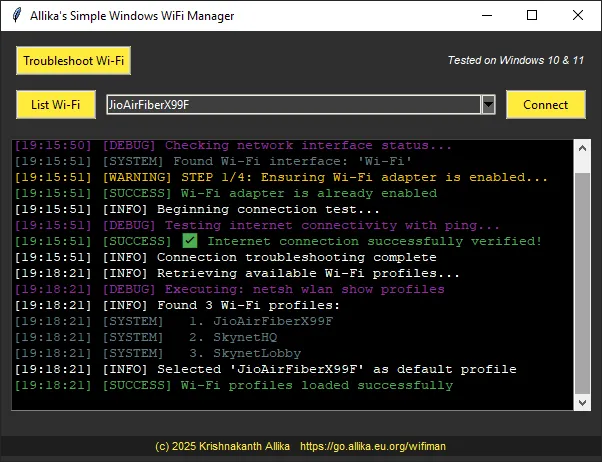
    Designed for visual clarity with real-time, color-coded logs.

  • Smart Adapter Handling
    Detects and re-enables disabled interfaces using multiple strategies.

  • Portable Executable
    Distributable via .exe without Python installation using PyInstaller.

Screenshot of WiFiMan

Technologies Used

  • Python 3.10+
  • tkinter for GUI
  • subprocess for executing system commands
  • threading & ctypes for background operations and control
  • pyinstaller for packaging

Approach

1. Identify User Needs

The goal: a WiFi repair utility for non-technical users. Needs included:

  • Automatic repair
  • GUI for saved profiles
  • Logging output

2. Choose the Right Tools

Python + tkinter + subprocess = ideal for GUI + system commands.

3. Build Incrementally

Development Phases:

  • Phase 1: Basic GUI + test command
  • Phase 2: Profile listing
  • Phase 3: Troubleshooting logic
  • Phase 4: Logging + threading
  • Phase 5: Packaging

4. Focus on Robustness

Handles:

  • Disabled adapters
  • Admin prompts
  • Thread responsiveness

5. Distribute Easily

Packaged with PyInstaller + PDM for dependency management.


Project Structure

wifiman/
├── project/
│   └── main.py          # Core GUI and logic
├── README.md            # User guide
├── changelog.md         # Feature log and fixes
├── pyproject.toml       # Python project metadata (PDM)

How It Works: Deep Dive into Components

1. System Command Runner

def run_command(command, admin=False):
    try:
        if admin:
            result = subprocess.run(
                ["powershell", "Start-Process", "cmd", "-Verb", "RunAs", "-ArgumentList", "/c", command],
                stdout=subprocess.PIPE,
                stderr=subprocess.PIPE,
                text=True,
                shell=True,
            )
        else:
            result = subprocess.run(
                command,
                stdout=subprocess.PIPE,
                stderr=subprocess.PIPE,
                text=True,
                shell=True,
            )
        return result.stdout + result.stderr
    except Exception as e:
        return str(e)

2. GUI Setup with tkinter

app = tk.Tk()
app.title("Allika's Simple Windows WiFi Manager")
app.geometry("600x430")

Includes:

  • ttk.Button, ttk.Combobox, ScrolledText
  • Theming for dark mode
  • Footer and log display

3. Log Output Styling

def log_output(text, message_type="INFO"):
    log_area.configure(state="normal")
    timestamp = time.strftime("[%H:%M:%S] ", time.localtime())
    prefix = f"[{message_type}] "
    formatted_text = timestamp + prefix + text

    colors = {
        "INFO": "#FFFFFF",
        "SUCCESS": "#4CAF50",
        "ERROR": "#F44336",
        "WARNING": "#FFC107",
        "COMMAND": "#2196F3",
        "DEBUG": "#9C27B0",
        "SYSTEM": "#607D8B",
    }

    tag_name = f"color_{message_type}"
    log_area.tag_configure(tag_name, foreground=colors.get(message_type, "#FFFFFF"))
    log_area.insert(tk.END, formatted_text, tag_name)
    log_area.see(tk.END)
    log_area.configure(state="disabled")

4. WiFi Troubleshooting Workflow

def reset_wifi():
    interface_name = get_wifi_interface_name()
    if adapter_is_disabled(interface_name):
        try_methods_to_enable(interface_name)

    while True:
        if not can_ping("www.google.com"):
            disable_adapter(interface_name)
            time.sleep(5)
            enable_adapter(interface_name)
            wait_with_logs(30)
        else:
            break

5. Thread Termination

def terminate_thread(thread):
    thread_id = thread.ident
    ctypes.pythonapi.PyThreadState_SetAsyncExc(
        ctypes.c_long(thread_id), ctypes.py_object(SystemExit)
    )

6. WiFi Profile Manager

def list_wifi_profiles():
    output = run_command("netsh wlan show profiles")
    profiles = []
    for line in output.splitlines():
        if "All User Profile" in line:
            profiles.append(line.split(":")[1].strip())

7. Packaging with PyInstaller

pyinstaller --onefile --noconsole main.py

Or with PDM:

pdm build

Testing & Compatibility

  • Windows 10 and 11
  • Admin rights required for full feature set

Distribution

Download the .exe from:

https://go.allika.eu.org/wifimanreleases

Install via pip:

pip install wifiman
wifiman

Licensing

Licensed under GNU GPL v3.
You’re free to modify, share, and build upon the software with attribution.


Final Thoughts

WiFiMan demonstrates how powerful Python can be for system-level desktop tools. Combining simple GUI design, robust system command handling, and thoughtful UX allows even solo developers to craft useful Windows utilities.

Want to improve or fork the project? Head to https://go.allika.eu.org/wifimanrepo

Last updated 2025-05-01 19:54:17.273940 IST

Comparing pip, conda, and uv

wordcloud

Podcast

Hit play and let the knowledge flow!

Introduction

In the evolving landscape of Python development, efficient package management is crucial. Three prominent tools—pip, conda, and uv—serve this purpose, each with unique features and performance characteristics. This article provides a comprehensive comparison of these package managers, focusing on their capabilities, performance, and suitability for various development scenarios.

Overview of Package Managers

pip

The default package installer for Python, pip allows users to install and manage Python packages from the Python Package Index (PyPI). It works seamlessly with virtual environments created using venv or virtualenv.

conda

Originally developed for the Anaconda distribution, conda is a cross-language package manager that handles package installations and environment management. It supports not only Python packages but also packages from other languages, making it versatile for data science and machine learning workflows.

uv

A modern, high-performance Python package manager written in Rust, uv aims to revolutionize Python package management by offering faster installations and integrated environment management. It maintains compatibility with pip’s ecosystem while addressing some of its performance limitations.

Comparative Analysis

The following table provides a detailed comparison of pip, conda, and uv across various parameters:

Feature pip conda uv
Package Scope 🟡 Python packages 🟢 Multi-language packages (Python, R, etc.) 🟡 Python packages
Environment Management 🔴 External tools (venv, virtualenv) 🟢 Integrated 🟢 Integrated
Installation Speed 🟡 Moderate 🟡 Variable (faster for precompiled packages) 🟢 Fast (10–100x faster than traditional tools)
Dependency Resolution 🔴 Sequential, can be slow 🟢 Efficient, handles complex dependencies 🟢 Fast, with optimized algorithms
Precompiled Binaries 🟡 Partial (wheels) 🟢 Extensive use, especially for data science packages 🟡 Partial (utilizes wheels, similar to pip)
Memory Usage 🔴 Higher during installations 🟡 Moderate 🟢 Lower memory footprint during installations
Error Handling 🟡 Standard error messages 🟢 Detailed conflict resolution 🟢 Improved error messages and conflict handling
Reproducibility 🟡 Relies on requirements.txt 🟢 Ensures consistent environments with explicit specifications 🟢 Uses lockfiles for reproducible environments
Platform Compatibility 🟡 Python-specific 🟢 Cross-language, supports various platforms 🟡 Python-specific, but with cross-platform support
Community and Ecosystem 🟢 Extensive, with widespread adoption 🟢 Strong in data science and academic communities 🟡 Growing, with focus on performance and modern development practices

Legend: 🟢 Excellent, 🟡 Moderate, 🔴 Needs Improvement

Performance Benchmarks

To illustrate the performance differences, let's consider the installation times for common Python packages:

Package pip Time conda Time uv Time
fastapi ~4.5 sec ~5.2 sec ~1.5 sec
pandas ~7.0 sec ~3.8 sec ~2.5 sec
seaborn ~6.5 sec ~4.5 sec ~2.2 sec
scikit-learn ~12.0 sec ~3.2 sec ~4.5 sec

Note: Actual installation times can vary based on system specifications and network conditions.

Fig 01. Installation time comparision

Key Observations

  • Installation Speed: uv consistently demonstrates faster installation times compared to pip and conda, primarily due to its Rust-based implementation and parallel processing capabilities.
  • Environment Management: While pip relies on external tools for environment management, both conda and uv offer integrated solutions, simplifying the workflow for developers.
  • Package Scope: conda stands out with its ability to manage packages beyond Python, catering to a broader range of scientific and data-centric applications.
  • Dependency Resolution: uv and conda provide efficient dependency resolution mechanisms, reducing potential conflicts and installation issues.

Conclusion

Choosing the right package manager depends on the specific needs of your project:

  • pip: Suitable for projects strictly within the Python ecosystem, especially when using traditional virtual environments.
  • conda: Ideal for data science projects requiring packages from multiple languages and complex dependencies.
  • uv: Best for developers seeking faster package installations and integrated environment management within the Python ecosystem.

As the Python packaging landscape evolves, tools like uv are pushing the boundaries of performance and usability, offering developers more choices tailored to their workflow requirements.

References

  1. Marsh, C. (2024, February 15). uv: Python packaging in Rust. Astral. Retrieved from https://astral.sh/blog/uv
  2. Sivan, V. (2024, June 10). Introducing uv: Next-Gen Python Package Manager. Medium. Retrieved from https://codemaker2016.medium.com/introducing-uv-next-gen-python-package-manager-b78ad39c95d7
  3. Astral. (2024). Features | uv - Astral Docs. Retrieved from https://docs.astral.sh/uv/getting-started/features/
  4. Flocode. (2024, October 20). #044 | uv: A Guide to Python Package Management. Substack. Retrieved from https://flocode.substack.com/p/044-python-environments-again-uv
  5. Astral. (2024). astral-sh/uv: An extremely fast Python package and project manager. GitHub. Retrieved from https://github.com/astral-sh/uv

Last updated 2025-04-06 19:31:26.273105 IST

[^top]

SillikaLM: Design and Implementation of a Custom Language Model Platform

wordcloud

Podcast

Relax and enjoy—let my article speak for itself!

Short version Long version

Abstract:

This article presents SillikaLM, an open-source platform designed to facilitate local experimentation with Large Language Models (LLMs). SillikaLM, built upon a microservice architecture leveraging FastAPI, addresses the challenges of managing, customizing, and deploying LLMs in resource-constrained environments. The system integrates Ollama for streamlined model management and utilizes OpenWebUI to provide an accessible web-based interface. A novel encryption method is used to store prompts that are used for custom made SillikaLM models. Performance benchmarks and resource utilization metrics demonstrate the system's efficiency. The modularity of the architecture facilitates future extensions including support for other machine learning technologies. Further research will include improvements to the backend orchestration, model quantization for resource optimization, and integration of community-contributed AI personas.

Why SillikaLM?

From Curiosity to Code – My LLM Adventure

As my fascination with Large Language Models (LLMs) has grown steadily alongside their rapidly increasing capabilities. My frequent interactions with tools like ChatGPT, Gemini, and Copilot – as well as coding assistants such as Continue, RooCode, and Windsurf – have given me first-hand experience with their potential to revolutionize various aspects of work and creativity.

This intimate exposure sparked a deeper aspiration: to explore the boundaries of LLM technology through direct experimentation and personalization. While cloud-based solutions offer convenience, they often present a "walled garden" experience, limiting the user's ability to truly understand and customize the underlying models.

Therefore, I embarked on a journey to create a platform for local LLM development and experimentation. My exploration of the Ollama platform provided a crucial piece of the puzzle, enabling the seamless installation and execution of LLMs on local hardware.

However, the command-line interface, while powerful, lacked the intuitive accessibility necessary for fluid exploration and creative iteration. The search for a suitable web-based UI led me to discover OpenWebUI, a project with a similar goal as my own. The Python foundation was key to me and set me on course! With OpenWebUI as a base I made the project, SillikaLM which combined local LLM's with my creative goals.

The inspiration for SillikaLM was to build creative, custom, and entertaining bots, that had unique interactions. My hope is to put the LLM AI in other's hands and let them build a better, cooler future.

I created SillikaLM because I wanted to:

  • Democratize AI Experimentation: Take the magic of LLMs from a cloud service, and make it accessible to everyone who wants to explore LLMs.
  • Learn by Doing: I find that building things is the best way for me to really understand how they work.
  • Have Some Fun: Because who doesn't want to chat with an AI that thinks it's a disgruntled god, a CEO, or an armchair athlete? (And I'm definitely planning to make a model after myself!)

What is SillikaLM, after all?

I'm excited to finally share a side project that's been consuming my evenings and weekends: SillikaLM! The name is, admittedly, a bit… unconventional. It's a tongue-in-cheek twist on "Allika's Silly Language Models," and it perfectly captures the spirit of this project: serious learning with a healthy dose of fun.

Like many of you, I've been mesmerized by the explosive growth of LLMs. But I wasn't content just to observe – I wanted to understand what makes these things tick, to really get my hands dirty. I wanted to explore building unique SillikaLM models that would be both fun and interesting to interact with. I'd been working with Ollama to manage my LLM so I decided that would be an integration point.

So, I set out to build a platform where I could easily manage, deploy, and most importantly, play with language models on my own machine. The result is SillikaLM, a lightweight and accessible platform that I hope will inspire others to dive into the world of AI.

What is SillikaLM? It's More Than Just a Silly Name.

At its core, SillikaLM is a FastAPI application designed to simplify the process of creating, managing, and interacting with language models locally. It seamlessly integrates with:

  • Ollama: For efficient model management (pulling, creating, listing, deleting). This was key for making it easy to try out different models.
  • OpenWebUI: Providing a clean and intuitive web-based interface. I wanted a nice frontend that anyone could use without needing to know command-line wizardry.

Think of SillikaLM as your own personal virtual laboratory for playing with LLMs. It was important to me to remove as much friction as possible from the experiment process.

Key Features I'm Particularly Proud Of:

  • Effortless Model Management: Create, list, and delete language models with just a few clicks, all from the comfort of the web interface.
  • Ollama Integration: The tight integration with Ollama makes it incredibly easy to experiment with different base models and quickly deploy new SillikaLMs.
  • OpenWebUI Frontend: I've always appreciated how user-friendly OpenWebUI is, and I wanted that same level of accessibility for SillikaLM.
  • Model Creation Made Easy: Create new language models based on a base model name size and category from a built in or custom configuration.
  • Quirky Personalities: The focus on building fun and unique personalities for each model. It's not just about raw performance; it's about creating engaging AI companions.
  • Comprehensive Logging: I'm a big believer in good logging, so SillikaLM includes detailed logs to help you understand and debug model behavior.
  • Easy Installation: I've tried to make the installation process as straightforward as possible, with detailed instructions for both uv (recommended) and pip.

Meet the SillikaLMs: A Cast of Characters!

Model Name Personality Summary
Armchair Athlete 🏆🍕 Yells sports strategies at the TV but hasn’t exercised since 2012.
Cashanova the Banker 💰📈 Treats friendships like investments and emotions like stock market trends.
CEO - Chief Evil Officer 😈🏢 Measures happiness in profit margins and fires interns for sport.
Deus Exasperatus ⚡😩 A god who regrets creating humans and sighs more than he speaks.
Dr. Nurse 🩺🔬 Diagnoses strangers mid-conversation and carries a defibrillator just in case.
Kumbhakarna 😴🍗 Wakes up only for food and world-ending catastrophes—maybe.
Miss Marshmallow 🍭💖 Sweet, soft, and suspiciously good at revenge.
Pipelinestein 🔬⚙️ Automates everything, including morning coffee and breathing.
PyThanos 🧑‍💻🔮 Snaps half of all bad code into oblivion—documentation included.
Ramanujenius 🧮🤓 Solves equations for fun and statistically proves you're wrong.

These are just a few of the models I've created—I encourage you to experiment and build your own!

Architecture and Backend

A Peek Under the Hood – How It All Comes Together

Let's pull back the curtain and take a look at how SillikaLM actually works, from the moment you fire it up to when you're chatting with a custom-built AI companion. It's a fascinating dance of different technologies, all orchestrated to make local language model experimentation as smooth as possible.

At the very heart of SillikaLM lies its core logic, built with the speedy and efficient FastAPI framework. This central engine is responsible for fielding all the requests that come from the user interface and coordinating the necessary actions, whether it's creating a new model, listing available ones, or shutting the whole thing down gracefully. FastAPI's structured approach ensures that everything runs smoothly and predictably.

To get things started, the main.py script is the launchpad for the application. It's a concise piece of code, primarily responsible for kicking off the Uvicorn server. Uvicorn is like the tireless workhorse that listens for incoming requests and makes sure they're handled promptly. By setting reload=False in a production environment, we ensure stability and prevent unintended restarts, keeping your AI lab running without interruptions.

The real magic, though, happens in the api.py file, which contains the main logic of SillikaLM, and this is where the lifespan context manager comes into play. This elegant setup lets us manage the starting and stopping of essential background processes, like ollama serve and open-webui serve. Think of it as a conductor ensuring that all the instruments in the orchestra are playing in harmony. As the application starts, the ollama serve process brings Ollama to life. The web browser is opened to display Open WebUI and provide you with a way to create SillikaLM models that make your projects come to life. When SillikaLM needs to shut down, this system ensures that nothing is left running in the background, preventing any unwanted process clutter.

The models prompts are not just loaded and inserted in api.py, they're encrypted. This is done by using a Fernet class which initialized using a secret key stored in the .env file.

When the user is presented with the WebUI the user is able to interact with the tool. Every button in the WebUI calls a dedicated function. The / route serves up the index.html file, which defines the structure and content of the main UI.

From creating a model to getting detailed logs of what's happening behind the scenes, api.py has routes to call specific functions. With the aid of these API routes, you can orchestrate their LLM interactions.

Finally, we must also consider logger.py. The logger is the unsung hero of any well-behaved application, and SillikaLM is no exception. With its structured logging, every activity, error, and key event is carefully recorded in the sillikalm.log file. This meticulous record-keeping makes debugging a breeze and gives you invaluable insights into how your models are behaving.

And that's how SillikaLM functions on the backend to serve an enjoyable end to end LLM experience.

Frontend

SillikaLM's Front-End: Where Code Meets Quirky Charm

While the backend handles the behind-the-scenes magic, the frontend – made up of index.html and scripts.js – is what you see, touch, and interact with. It's the control panel of your AI laboratory, designed to make managing and experimenting with language models as intuitive as possible. Think of it as the stylish dashboard that brings this complex machine to life!

index.html lays out the blueprint for your entire SillikaLM experience. It's the foundational HTML file that defines the structure of the page. It paints a picture of the main components you see - from the title banner to the footer. This is also where the interactive elements come to life. Imagine dropdown menus that guide your model selections and buttons that trigger commands with a single click. The HTML structure also makes room for the most important component, you. This space displays the results of your interactions, providing real-time feedback on the status of model creation, deletion, and other key operations. There is also an important log display that brings all backend actions together for the end user. And of course, we can't forget the footer. This provides links to valuable resources and proper licensing and trademark information, ensuring you feel at home in SillikaLM's environment.

But the real magic is in scripts.js. This Javascript is the magic wand that brings the elements of index.html to life. When the WebUI loads, scripts.js goes to work with a variety of features. It's job is to help communicate with the backend to bring it to life. From populating options on dropdowns to loading all the logs, scripts.js communicates with the powerful and useful backend and delivers all the necessary requirements to bring the UI to life.

  • Making all base model names visible - When the application loads scripts.js is initialized by fetching base model options. This is done by calling /list_base_models to populate your WebUI base model dropdown.
  • Creating SillikaLM models The createModels() function creates models and calls the /create_models route using the base model name the user specified. When this is initiated the Note will appear telling the user to wait.
  • Listing your active models By calling the /list_models route, scripts.js displays the models created by your system as well as third-party models you've downloaded, providing a full view of your LLM toolkit.
  • Removing LLM's scripts.js is a tool that can safely remove those LLM's. scripts.js is programmed to handle errors and correctly remove the desired LLM with a single call.

In summary, the frontend is what makes it easy for you to create and interact with a SillikaLM model that serves your every wish.

Using SillikaLM

Getting Started with SillikaLM

The SillikaLM package is readily available on the Python Package Index (PyPI) at https://pypi.org/project/sillikalm/. The package has been analyzed by SafetyCLI for zero known vulnerabilities, ensuring a secure deployment.

I. Prerequisites:

Prior to installing SillikaLM, ensure the following prerequisites are met:

II. Installation Procedure:

SillikaLM has been tested and verified to function on Python 3.11 and 3.12 environments. Python 3.11 is recommended for broad compatibility. Users employing Python 3.12 may require the installation of Visual C++ Build Tools to ensure compatibility with certain underlying dependencies.

Two distinct installation methodologies are supported: uv (recommended) and pip.

  • Installation via uv (Recommended):

    1. Create a dedicated Conda environment:
      conda create -n sillikalm uv python=3.11
      
    2. Activate the newly created environment:
      conda activate sillikalm
      
    3. Install SillikaLM using uv:
      uv pip install sillikalm
      
    4. Execute SillikaLM:
      sillikalm
      
  • Installation via pip:

    1. Create a dedicated Conda environment:
      conda create -n sillikalm python=3.11
      
    2. Activate the newly created environment:
      conda activate sillikalm
      
    3. Install SillikaLM using pip:
      pip install sillikalm
      
    4. Execute SillikaLM:
      sillikalm
      

III. Web Interface Overview:

Upon successful installation and execution, SillikaLM presents a web-based user interface. This interface provides a comprehensive suite of tools for managing and interacting with SillikaLMs:

  • Model Selection: Utilize the dropdown menu to select a base LLM to build SillikaLM models upon.
  • Model Installation: Install all SillikaLM models currently defined within the system using a single-click operation.
  • Model Listing: Display a comprehensive list of installed LLMs, including relevant details such as model name, file size, parameter count, quantization level, and last modified timestamp.
  • Chat Interface: Wait for this button to get activated. Click it to engage in interactive conversations with deployed SillikaLM models.
  • Model Deletion: Select and delete specific SillikaLM models to manage disk space and streamline the available LLM pool.
  • Batch Deletion: Remove all SillikaLM models with a single action, facilitating efficient resource management.
  • System Shutdown: Gracefully terminate the SillikaLM application and associated processes, ensuring proper resource cleanup.
  • Log Examination: Examine detailed application logs to monitor activity, diagnose issues, and gain insights into system behavior.

The SillikaLM project is open-source and you are encouraged to explore the codebase at https://go.allika.eu.org/sillikalmrepo. SillikaLM is licensed under the GNU General Public License v3 (GPLv3).

Last updated 2025-03-31 19:46:59.235528 IST

[^top]

Search Engines Evaluation

wordcloud

Definition of a Search Engine

A search engine is a software system designed to search for information on the internet by indexing and retrieving relevant web pages based on user queries.

How It Works:

  1. Crawling: The search engine uses bots (crawlers or spiders) to scan websites and collect data.
  2. Indexing: The collected data is organized and stored in a massive database for quick retrieval.
  3. Ranking & Retrieval: When a user enters a query, the search engine applies algorithms to rank and display the most relevant results.

Examples of Search Engines:

Functions of a Search Engine:

  • Finds and ranks relevant web pages.
  • Provides quick access to vast amounts of information.
  • Supports various media types (text, images, videos, news, etc.).
  • Includes advanced AI features (predictive search, chatbots, etc.).

In summary, a search engine is a tool that helps users find information efficiently across the web by utilizing algorithms and indexing systems.

Search engine evaluation parameters

Parameter used to evaluate search engines:

1. Accuracy

Definition: Measures how relevant and correct the search results are in response to user queries.

  • A high accuracy score means the search engine effectively delivers precise, high-quality, and reliable information.
  • Search engines like Google score high in accuracy because they have extensive indexing and advanced ranking algorithms.

2. Performance

Definition: Assesses how fast and efficiently the search engine retrieves and displays results.

  • Includes query processing speed, page load time, and resource consumption.
  • Faster search engines provide a smoother browsing experience, while slower ones may cause frustration.

3. User Experience (UX)

Definition: Evaluates how easy and intuitive it is to use the search engine.

  • Considers interface design, ease of navigation, and mobile compatibility.
  • Search engines with clean layouts, fewer ads, and simple interfaces score higher in UX.

4. Coverage

Definition: Measures the breadth and depth of the search engine's indexed content.

  • A high coverage score means the search engine has indexed a large number of websites, documents, and media files.
  • Google and Bing score high because they index vast portions of the internet, whereas privacy-focused engines like Mojeek have smaller indexes.

5. Freshness

Definition: Assesses how frequently the search engine updates its index to include new or trending content.

  • Important for news, research, and real-time event searches.
  • Google and Bing update their indexes frequently, ensuring the latest information is available.

6. AI Features

Definition: Evaluates the extent to which artificial intelligence enhances search results.

  • AI helps with query prediction, natural language understanding, and ranking algorithms.
  • Google, Bing, and Brave use AI to improve search relevancy, summaries, and chatbot integrations.

7. Privacy

Definition: Measures how well the search engine protects user data and anonymity.

  • High privacy scores indicate no tracking, no logging of user searches, and no selling of user data.
  • DuckDuckGo, Brave, Startpage, and Searx excel in privacy by avoiding user profiling.

8. Bias

Definition: Analyzes whether the search engine favors certain viewpoints, sources, or political agendas.

  • High bias means the engine prioritizes specific content over neutral results.
  • Google and Bing have been criticized for bias due to partnerships and ranking algorithms, whereas Mojeek and Searx aim for neutrality.

9. Censorship

Definition: Examines whether search results are filtered, restricted, or blocked based on government or corporate policies.

  • High censorship means some results are removed due to political, regional, or corporate reasons.
  • Google and Bing comply with local censorship laws, while Searx, Brave, and Gibiru minimize content restrictions.

These parameters help compare search engines based on user needs, such as privacy, speed, or unbiased results.

Search engines comparison

Search Engine Accuracy Performance User Experience Coverage Freshness AI Features Privacy Bias Censorship Final Score
Google Search 98%
Highly relevant results.
95%
Fast response times.
94%
User-friendly interface.
98%
Largest web index.
97%
Frequently updated.
95%
Advanced AI features.
60%
Collects user data.
70%
Potential bias in rankings.
80%
Complies with censorship laws.
86%
Brave Search 90%
Strong relevance with privacy focus.
90%
Efficient performance.
88%
Simple, privacy-focused UI.
85%
Smaller index than Google.
85%
Regular updates.
88%
AI-powered Summarizer.
95%
Minimal tracking.
90%
Strives for neutrality.
90%
Minimal censorship.
89%
Bing 92%
Accurate for general queries.
90%
Competitive performance.
89%
Modern interface.
90%
Broad indexing.
90%
Frequent updates.
93%
AI-powered Copilot.
65%
Collects user data.
70%
Some bias in rankings.
75%
Moderate censorship.
84%
DuckDuckGo 85%
Good relevance with privacy.
88%
Efficient speeds.
86%
Minimalist interface.
80%
Smaller coverage.
80%
Less frequent updates.
70%
Limited AI integration.
95%
Strong privacy.
90%
Neutral results.
90%
Minimal censorship.
84%
Startpage 80%
Uses Google’s index for relevance.
85%
Good performance.
84%
Google-like experience.
75%
Limited indexing.
75%
Google-dependent updates.
65%
Minimal AI integration.
95%
No tracking.
90%
Neutral results.
90%
Minimal censorship.
82%
Swisscows 75%
Family-friendly filtered search.
80%
Moderate speeds.
82%
Simple, safe UI.
70%
Limited index.
70%
Less frequent updates.
60%
Minimal AI integration.
90%
Strong privacy.
85%
Filtered, safe results.
85%
Censors explicit content.
78%
Mojeek 70%
Independent search index.
75%
Moderate performance.
80%
Privacy-first interface.
65%
Smaller index.
65%
Less frequent updates.
55%
Minimal AI features.
95%
No tracking.
90%
Neutral search results.
90%
Minimal censorship.
76%
WolframAlpha 95%
Accurate for structured queries.
90%
Fast for computations.
85%
Data-heavy UI.
60%
Limited general web search.
70%
Regular database updates.
85%
Advanced AI and computation.
80%
Minimal tracking.
85%
Objective but focused on structured data.
85%
No censorship, limited coverage.
82%
Gibiru 65%
Decent relevance but lacks diversity.
70%
Slower than competitors.
75%
Basic privacy UI.
60%
Small independent index.
60%
Less frequent updates.
50%
Minimal AI integration.
90%
Strong privacy.
85%
Alternative-focused results.
85%
Minimal censorship.
71%
Searx 80%
Aggregates results from multiple engines.
85%
Good performance.
83%
Customizable UI.
70%
Coverage depends on sources.
75%
Freshness varies by source.
65%
Limited direct AI features.
95%
No tracking, open-source.
90%
Aggregates diverse sources.
90%
Minimal censorship.
82%

Privacy and Security in Search Engines

Privacy and security are fundamental aspects of search engines that significantly impact user trust and data protection. Below is an overview of each:

Privacy in Search Engines

Definition

Privacy refers to a search engine's practices regarding the collection, storage, and sharing of user data. Privacy-focused search engines aim to protect user anonymity and avoid tracking personal information.

Key Features

  • No Tracking – Search engines like DuckDuckGo do not track user searches or create personal profiles, ensuring anonymity ¹.
  • No Personal Data Storage – Engines such as Startpage do not log IP addresses or search histories, preventing data accumulation ².
  • Anonymous Search Results – Some search engines act as intermediaries, fetching results from major engines like Google without exposing user information ³.

Examples

  • DuckDuckGo – Emphasizes user privacy by not storing search histories or personal information ¹.
  • Startpage – Provides Google search results without tracking user data, offering a familiar experience with enhanced privacy ².

Security in Search Engines

Definition

Security involves protecting users from malicious content, ensuring safe browsing, and safeguarding data during transmission.

Key Features

  • Secure Connections (HTTPS) – Search engines like Google and Bing use HTTPS to encrypt data between the user and the search engine, preventing interception .
  • Malware and Phishing Protection – Features that warn users about potentially harmful websites or downloads.
  • Content Filtering – Blocking or filtering explicit content to provide a safer browsing experience, especially for younger users.

Examples

  • Google – Utilizes secure connections and offers safe browsing features to protect users from malicious sites .
  • Microsoft Bing – Implements enhanced privacy and security measures, including encrypted connections and compliance with organizational data protection policies .

Privacy-focused search engines prioritize user anonymity by minimizing data collection and tracking, while security-focused search engines emphasize protecting users from online threats and ensuring safe data transmission. Some search engines, like Brave Search, aim to combine both privacy and security features to offer a comprehensive safe browsing experience.

Bias and Censorship in Search Engines

Search engines play a crucial role in shaping our access to information. However, their operations can be influenced by bias and censorship, affecting the neutrality and comprehensiveness of the information we receive.

Bias in Search Engines

Definition

Bias in search engines refers to the systematic favoring or suppression of certain information, perspectives, or sources over others. This bias can result from algorithmic design, data sources, or external influences.

Examples of Bias

  • Reinforcement of Stereotypes
    Search engines may reflect societal biases present in their indexed content. For instance, searches for certain professions might predominantly display results aligning with traditional gender roles, thereby perpetuating existing stereotypes ¹.

  • Algorithmic Influence
    The design of search algorithms can inadvertently prioritize specific types of content. Factors such as user location, search history, and click patterns can lead to personalized results that may not present a balanced view on certain topics ².

  • Political Bias
    Some search engines have been accused of manipulating search results to favor particular political ideologies or candidates. Investigations have been launched to probe potential bias in search rankings, such as claims of anti-conservative bias in Google search results ³.

Censorship in Search Engines

Definition

Censorship in search engines involves the deliberate suppression or omission of specific information or websites from search results. This is often due to legal requirements, corporate policies, or governmental pressures.

Examples of Censorship

  • Geographical Restrictions
    In countries with strict internet regulations, search engines may be required to filter out content deemed inappropriate by the government. For example, in China, major platforms like Google and Facebook are blocked, and local search engines enforce content restrictions to comply with national laws .

  • Content Filtering
    Search engines often implement filters to exclude explicit or controversial content. While this protects users from harmful material, it can also lead to the exclusion of legitimate information, raising concerns about overreach .

  • Suppression of Dissenting Views
    In certain cases, search engines de-prioritize or remove content that contradicts prevailing narratives or policies. This limits access to alternative perspectives and can infringe on freedom of information .

Bias and censorship in search engines are complex issues that significantly impact the availability and diversity of information. While some measures aim to protect users and comply with legal standards, they may also suppress alternative viewpoints. Users should be aware of these factors and critically evaluate search results when seeking unbiased and comprehensive information.

Key Takaways

  • Google Search: Excels in accuracy, coverage, and freshness but scores lower in privacy, bias, and censorship due to data collection practices and content filtering.

  • Brave Search: Offers strong privacy protections and minimal bias, with commendable performance and AI integration.

  • DuckDuckGo and Startpage: Prioritize user privacy and neutrality but may lag in AI features and coverage compared to larger competitors.

  • WolframAlpha: Specializes in computational queries with high accuracy but has limited coverage for general web searches.

  • Searx: An open-source metasearch engine that emphasizes privacy and neutrality, aggregating results from various sources.

Last updated 2025-03-03 11:55:53.148982 IST

[^top]